User Research + Empathy Mapping
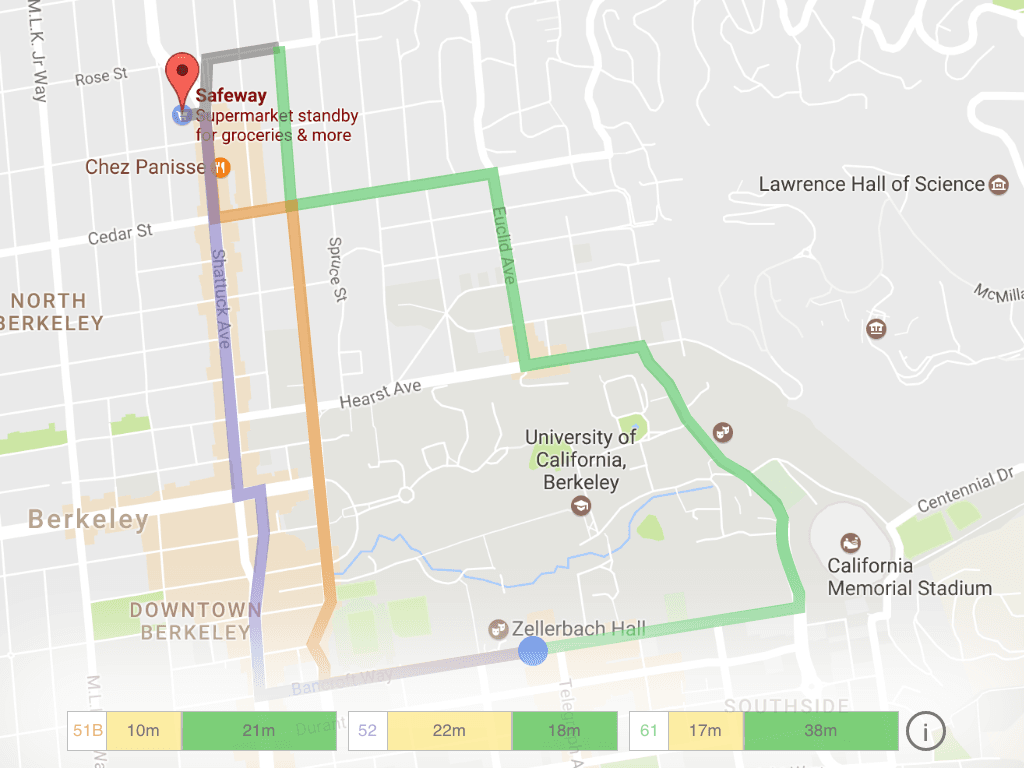
To understand our users, we hopped the various bus stops in Berkeley, traveling between them with AC Transit, the local bus system. We chatted with randomly selected users to learn their stories and their pain points with the system. The recurring theme was that most people didn’t know which bus line to use and when to use it. They simply opened up an app and hoped that the route the app suggested was the best one. To make matters worse, there are a multitude of apps that serve AC Transit, each suggesting different routes with variable results.

Ideation + Concept Sketches
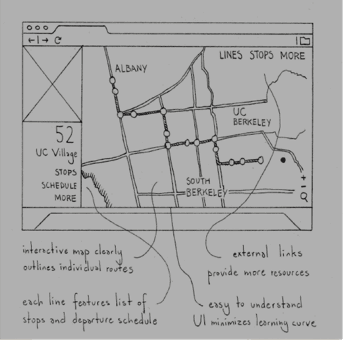
From this point, we went through ideation and created concept sketches of our top solutions. We went through web, print, and mobile-based solutions, and realized that adding another app or visiting another website only adds an additional pain point. Users don’t want to have to open more services to plan their commute. We finally decided on a touchscreen terminal that would placed at bus stops.
User Flow
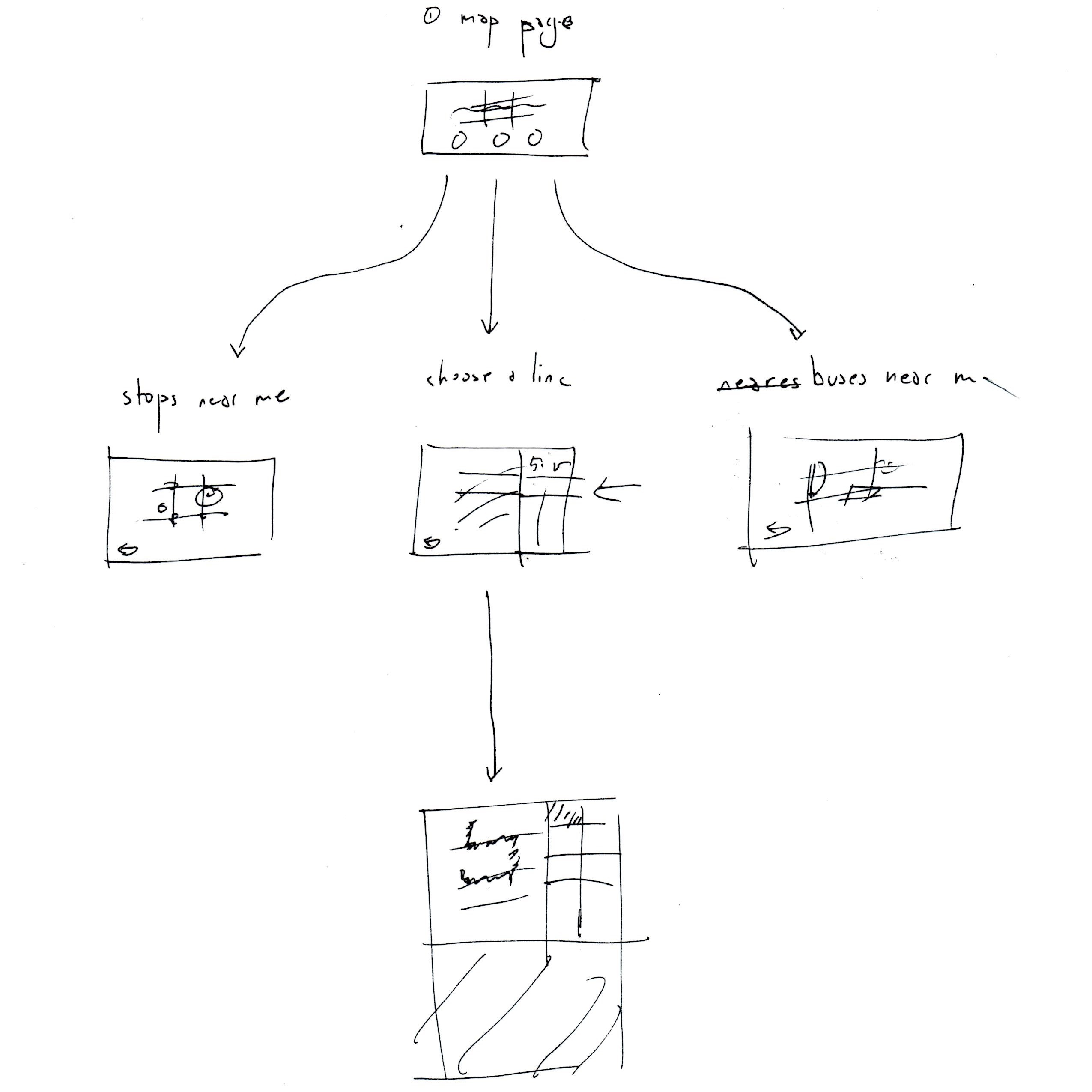
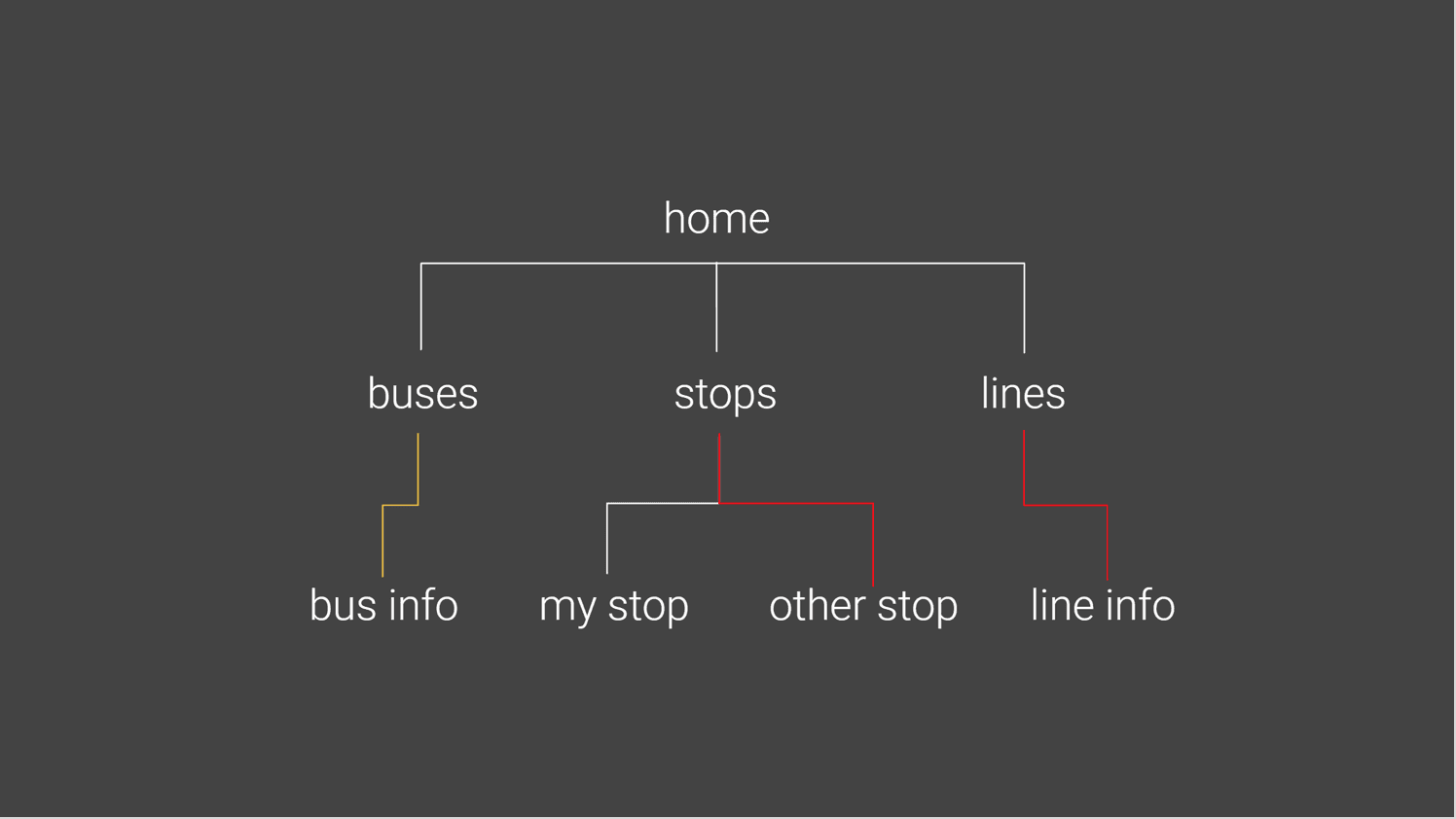
We planned our terminal screen around three main screens: bus stops, bus lines, and buses nearby, as these were the top three priorities we determined from our user research. Bus stops and nearby buses were useful in determining what buses could be caught quickly and in possible destinations, and the bus lines were to decide how a user would move from start to destination.
Low Fidelity Prototype
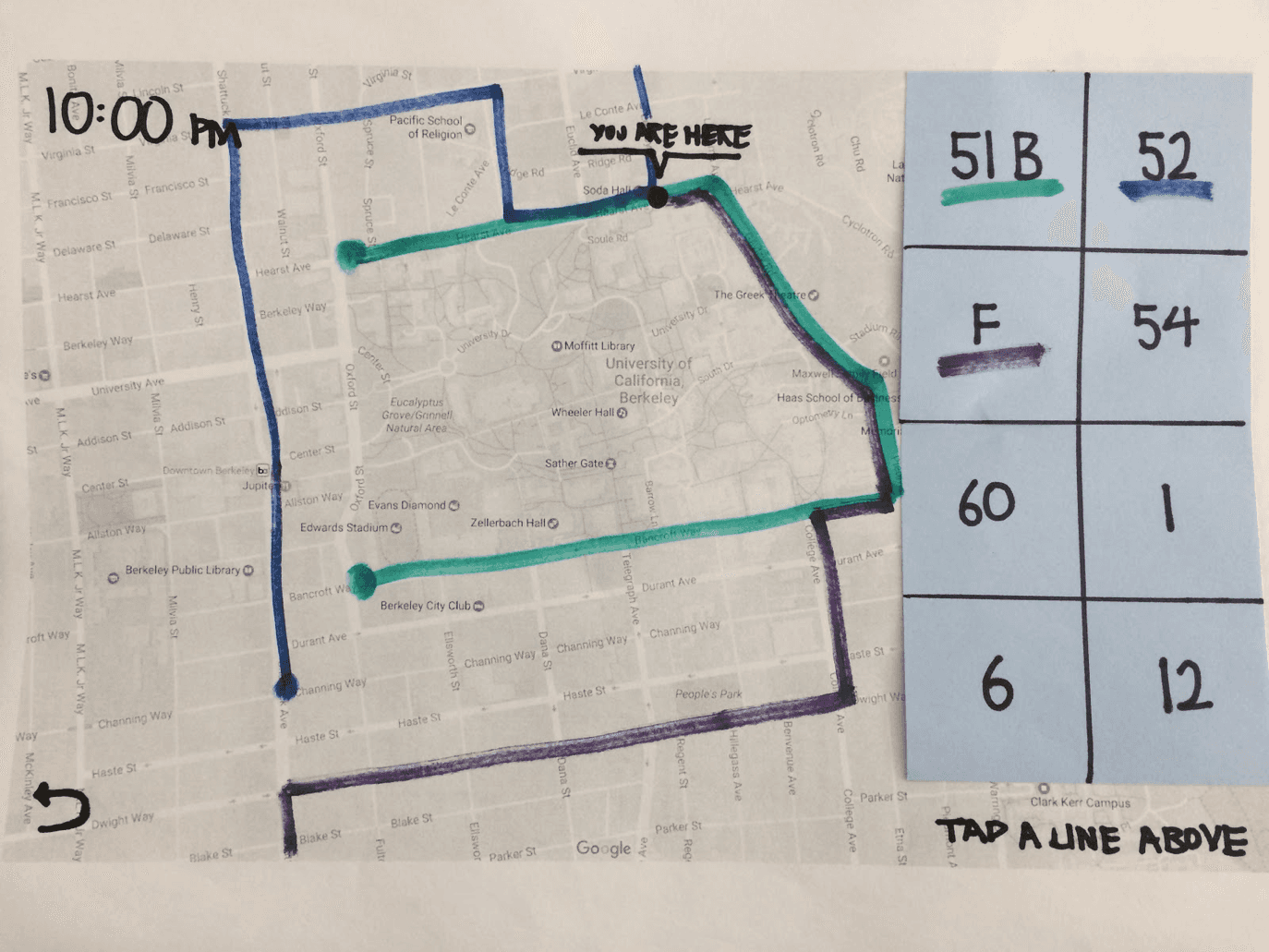
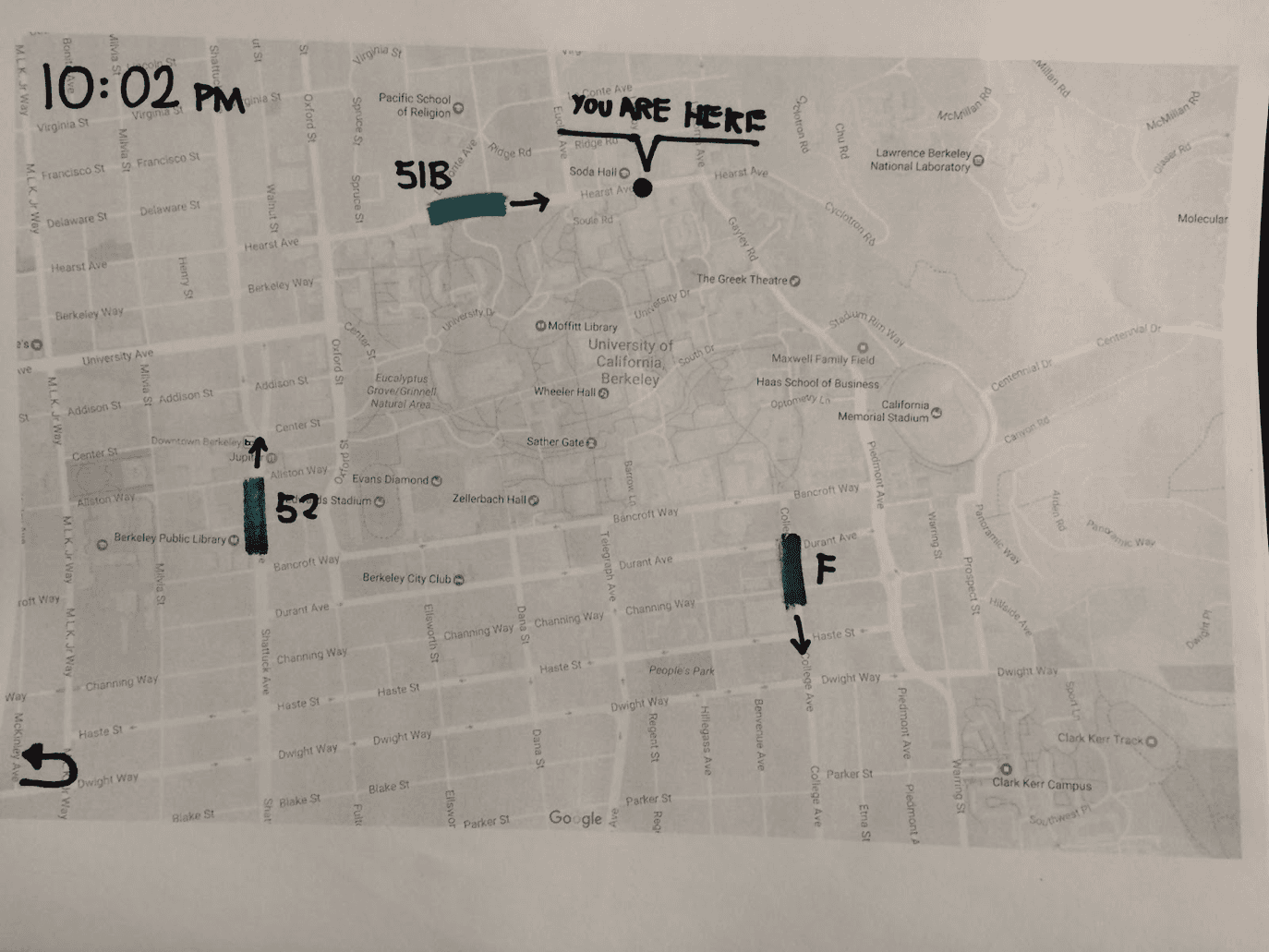
For our first prototype, we printed out screens of Google Maps and drew information on top to mock our wireframes. We then went to users and asked typical navigation prompts, such as traveling from their house to the college campus. As users flipped through different pages to navigate our screens, we asked followup questions as needed. From this, we learned three main points: 1) Visualizing bus lines helped users greatly: Most of our users only knew the names of bus lines that they used on an ongoing basis; they didn’t have a visual understanding of where bus lines traveled. 2) Navigating between screens was an easy process: Even without the interactive capabilities of a web or mobile prototype, users were able to quickly navigate between our physical pages. 3) Lots of unnecessary interactions from flipping between screens: Although it was easy to navigate, many users ended up switching back and forth between screens to find what they wanted (e.g. finding a bus nearby, then going to the bus line screen to see where the bus line went).
Medium Fidelity Prototype
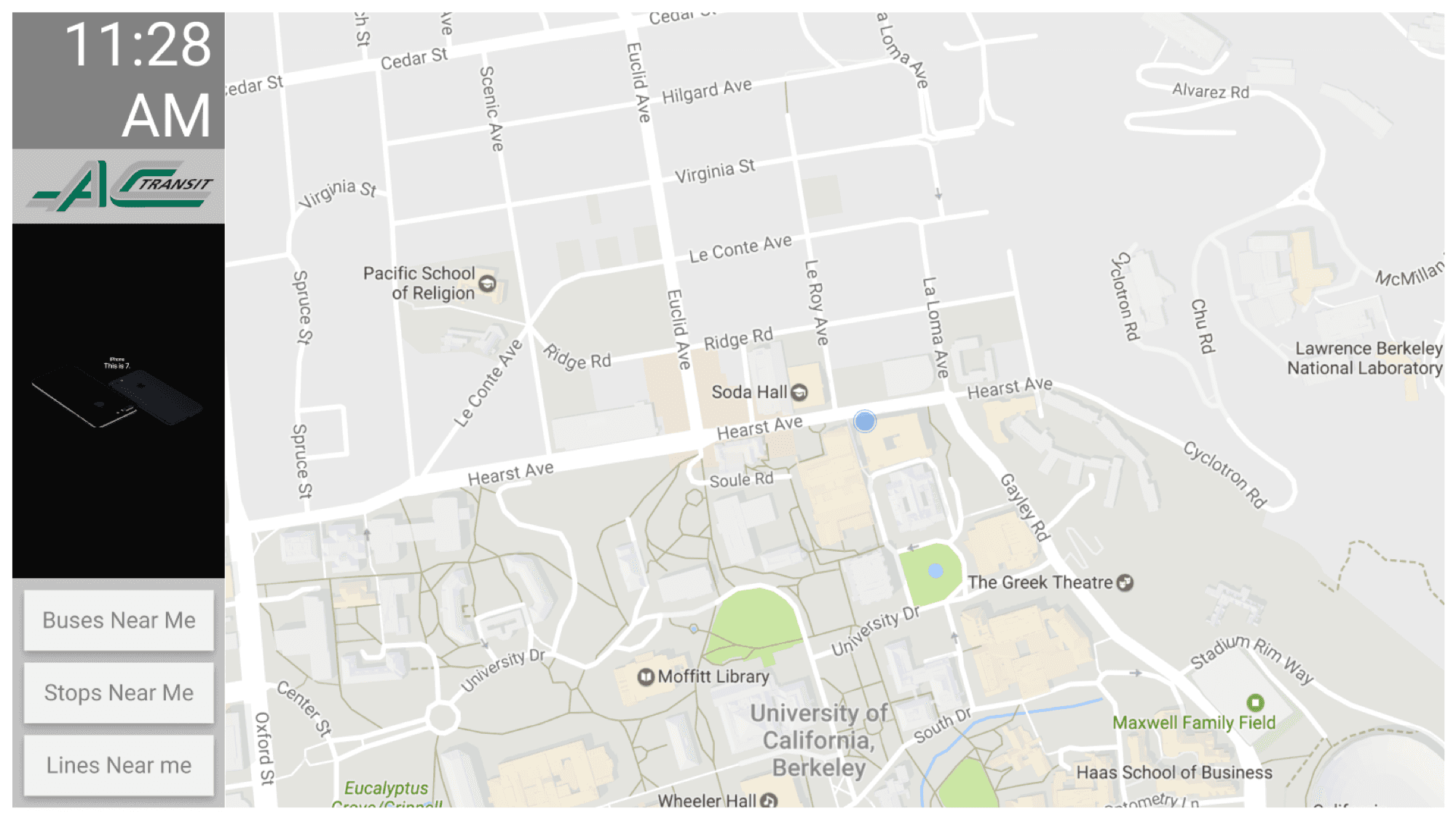
For our next prototype, we moved to a digital prototype to make it feel more like an actual touchscreen terminal. The screens and user flow were not changed; however, we wanted to see if a digital prototype led to different user interactions. We arrived at the conclusion that there was a lot of friction between subpages of our prototype, and that while visualizing bus lines helped, the content had to be reorganized.
Affinity Mapping + Pivot
To reorganize our screens, we relooked at our user flow, and highlighted points of high friction. After attempting to shuffle around our screens, we realized we were failing to address our users’ needs. When users think of travel, they focus not on their origin, but on their destination. We had spent time building a solution for users to explore information on bus routes, when really users only cared about reaching their destination, and not how they got there. We pivoted, focusing instead on creating a routing interface that would achieve users’ needs at a bus stop.
Final Prototype
Default Sleep Screen
The terminal spends most of time sleeping, only active for a few minutes when someone is waiting at the bus stop. To conserve energy, the default screen is a black screen with a touch icon on it, to indicate to a user to touch the screen to activate.

Blur
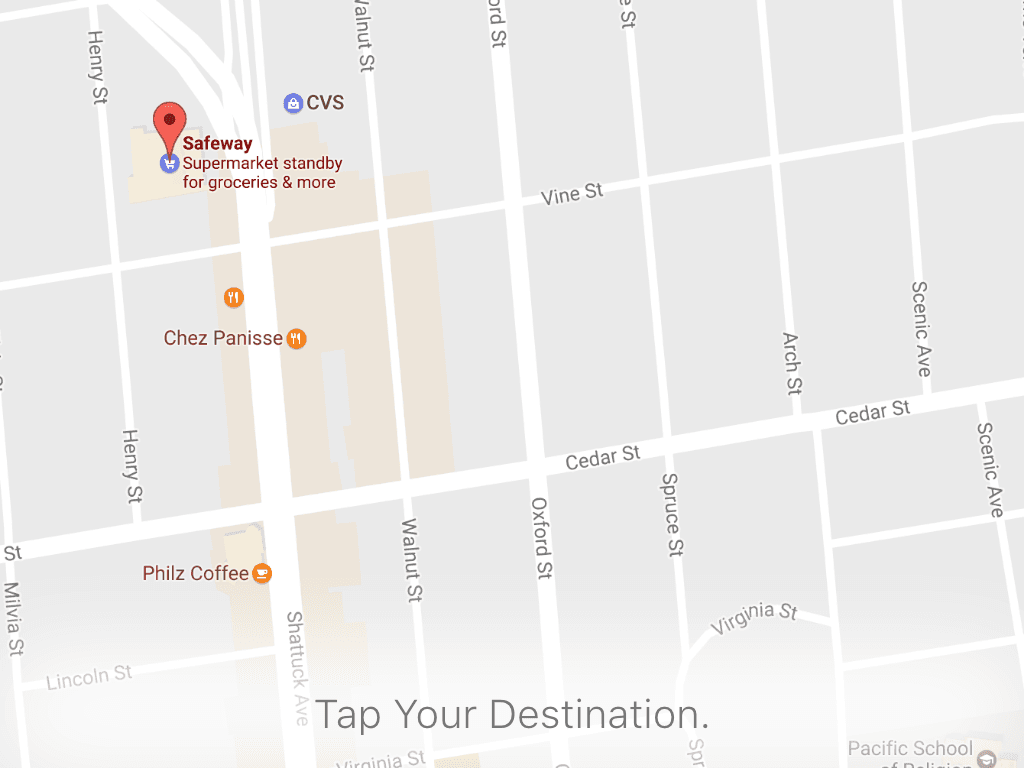
To not detract from the focus of the map, we added blur onto the edges when additional prompts or features were displayed.
Emphasis on Touch
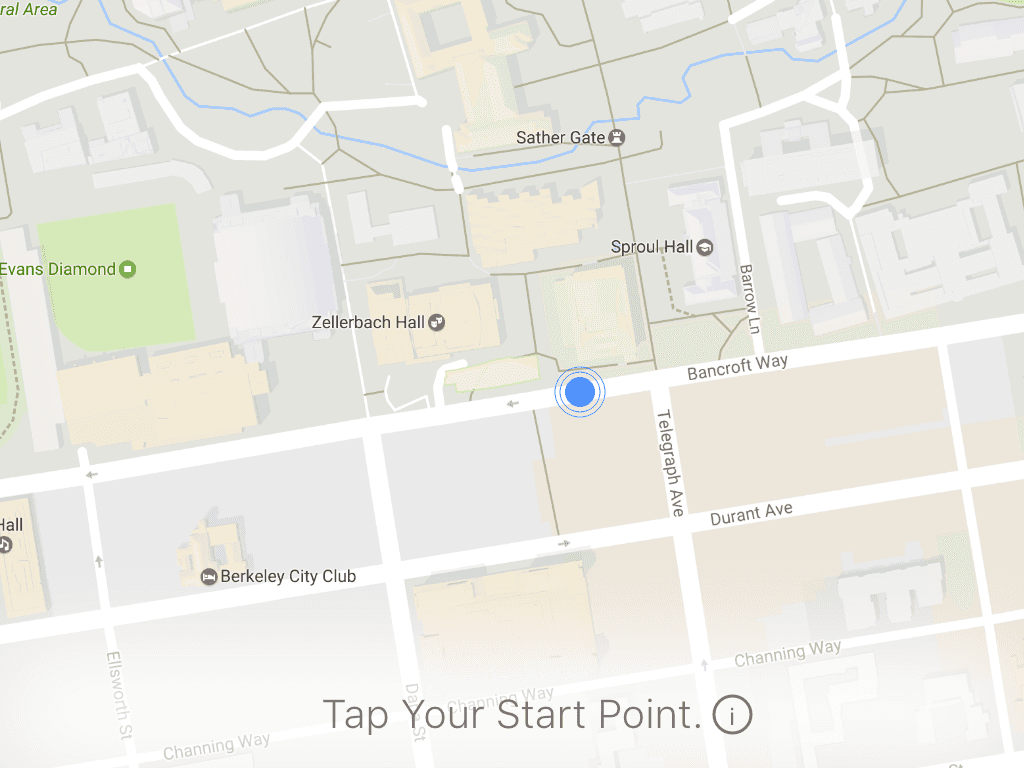
We noticed in our research that many older people would point to a start and destination on a map, then determine a transit route. Instead of inputting addresses, we wanted to replicate the more natural feeling of pointing to locations, and emphasized this feeling in our terminal.
Displaying Routes
Routes were semi transparently laid over the main map, with details on each route displayed at the bottom. We prioritized the line name, wait time, and travel time as the main characteristics a user would want to know when choosing between different routes.